Short answer: Slack’s Google Calendar and Outlook Calendar apps set your status to “In a meeting” but never include the meeting’s name, and their help pages don’t describe turning on Do Not Disturb. Don’t Interrupt can put the meeting name in your Slack status and switch on Do Not Disturb for as long as the meeting runs, and both are optional.
What Slack does on its own
Slack has three built-in ways to show you’re busy. None of them does both jobs at once.
- The Google Calendar and Outlook Calendar apps for Slack. Once connected, they set your status to “In a meeting” while an accepted event is on, and “Out of office” for time off (the Outlook app also has “Working remotely”). Slack’s help pages say it plainly: “Your status will not include the name of the meeting that you’re attending.” The pages don’t mention Do Not Disturb. Slack also says the Outlook app won’t overwrite a status you set by hand.
- A scheduled status. You can schedule up to five statuses at a time, each with a start and end time. They are one-off windows, so they suit a trip or a day off, not every meeting you’ll ever have.
- A notification schedule. Slack lets you set Do Not Disturb hours for every day, weekdays only, or custom times for each day, on every plan including Free. It follows the clock, not your calendar. You can also tick “Pause notifications” when you set a status by hand, but that is a manual step every time.
If “In a meeting” and a clear status are all you need, the native apps are free and simple. Use something else when you want the name of the meeting, or Do Not Disturb tied to the calendar.
Put the meeting name in your Slack status with Don’t Interrupt
This takes about five minutes.
Step 1: Connect Slack and your calendar
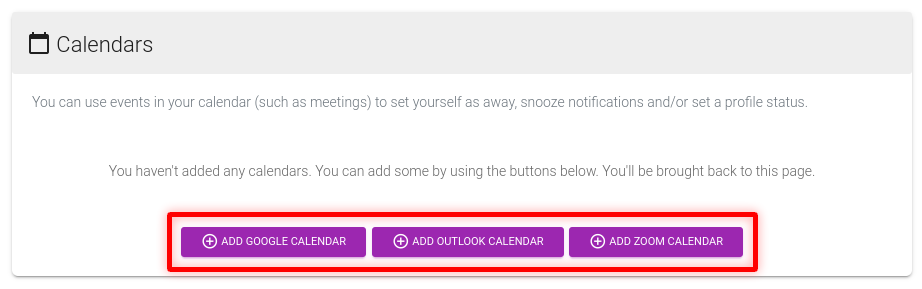
Sign up with Slack, then add your Google, Outlook or Zoom calendar from the dashboard. An iCal link also works.
Step 2: Turn on Do Not Disturb for meetings
Open the calendar’s Event/Meeting settings. Switch on Do Not Disturb, and Don’t Interrupt snoozes Slack notifications from the moment a meeting starts until it ends. Switch on Status to set a status message and emoji at the same time.
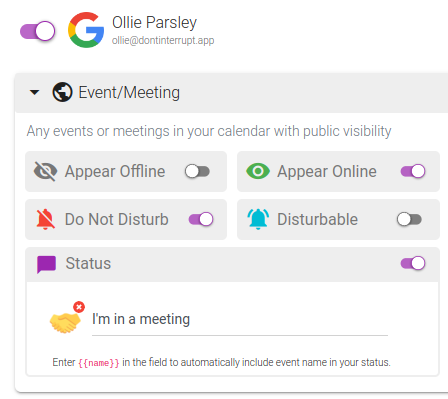
Step 3: Add the meeting name to the status text
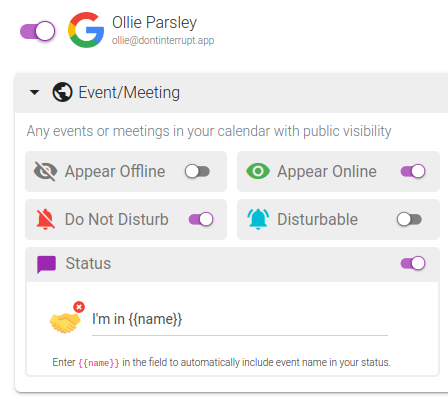
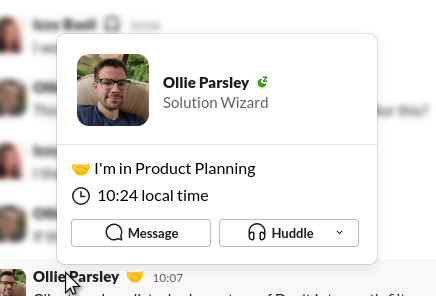
In the status text box, type {{name}} (two curly brackets either side) wherever the meeting name should go. For example, “In {{name}}” shows as “In Product Planning”. The name is replaced for each meeting, so you set this up once.
|
|
Slack shows about 100 characters of status text, so a very long meeting name is cut short.
Step 4: Keep sensitive meetings private
A status is visible wherever your profile shows, and Slack notes that depending on your workspace settings it can be visible to people in other organisations in shared channels. So think before you broadcast every title.
- Private events (marked private in your calendar) never show their title. Don’t Interrupt shows “Private event” instead.
- Calendar Rules let you swap the status for particular words. Add a rule for words such as “interview” or “review”, give it a generic status like “In a meeting”, and it replaces the name for those events only. The free Basic plan includes one rule with one phrase, and Plus includes five rules.
How the options compare
| Slack’s calendar apps | Reclaim | Status Calendar | Don’t Interrupt | |
|---|---|---|---|---|
| Meeting name in status | No, per Slack’s help pages | Yes, opt-in with a {title} parameter |
The site doesn’t mention it | Yes, optional, with {{name}}; private events show “Private event” |
| Do Not Disturb during meetings | Not described in the help pages | Yes, per event category, off by default | A single on/off switch | Yes, optional, per type of event |
| Calendars | Google, Outlook | Google, Outlook | Google, Outlook, Zoom, iCal | |
| Microsoft Teams | No, they are Slack apps | Listed as “coming soon” | The site doesn’t mention it | Yes |
| Cost for this | Included with Slack | Status sync needs a paid plan, from $10 per seat a month billed yearly | Free tier; Pro is $36 a year (early access) | Free Basic plan; Plus is $4 a month |
Rivals’ details checked against their own help and pricing pages on 2 October 2026. For more, see Don’t Interrupt vs Slack’s calendar apps and scheduled status, vs Reclaim and vs Status Calendar.
Limits worth knowing
- Changes land within about five minutes. Don’t Interrupt rounds event times up to five-minute boundaries, so a status can appear a little after a meeting starts and clear a little after it ends.
- Your own status wins. If you set a status by hand, Don’t Interrupt leaves it alone rather than overwriting it.
- The free plan adds a short tag (” • dontinterrupt.app”) to the end of statuses it sets. Paid plans can remove it.
- Outlook at work: many companies now stop people connecting their own calendar, so an IT admin may need to approve access. Add the calendar with an iCal link if you can’t wait for approval.
Frequently asked questions
Does Slack put the meeting name in my status?
Not with its own Google Calendar and Outlook Calendar apps. Slack’s help pages say your status will not include the name of the meeting. You need a tool that lets you add it, such as Don’t Interrupt or Reclaim.
Can Slack turn on Do Not Disturb for every meeting automatically?
Slack’s help pages for its calendar apps don’t describe it. Slack’s notification schedule works on the clock, not your calendar. Don’t Interrupt and Reclaim can both switch Do Not Disturb on for calendar events.
Will my colleagues see the names of private meetings?
No. Events marked private in your calendar show “Private event” in your status, never the title.
How quickly does my status change?
Within about five minutes of a meeting starting or ending. Don’t Interrupt rounds meeting times up to five-minute boundaries.
Is it free?
Don’t Interrupt has a free Basic plan for one calendar and one Slack or Microsoft Teams account. It adds a short tag to your status. Plus is $4 a month and removes the tag, with more calendars and rules, and every paid plan starts with a free trial.
Does this work in Microsoft Teams too?
Yes. Don’t Interrupt sets your Teams status message and Do Not Disturb in the same way. Read Google Calendar to Microsoft Teams status for the Teams side.