Short answer: Slack has a built-in notification schedule that pauses notifications outside the hours you choose, on every plan including Free, but it follows the clock and not your calendar. Don’t Interrupt adds Do Not Disturb rules driven by your working hours and by calendar events such as meetings and focus time, and it works alongside Slack’s own schedule.
What Slack does on its own
Slack gives you three built-in ways to quiet things down. Which one fits depends on whether the quiet is recurring, one-off or tied to a single status.
Notification schedule
This is the closest thing to “schedule Do Not Disturb”. In your notification preferences you choose when you want to receive notifications, and outside those hours Slack pauses them. There are three settings:
- Every day, with one start and end time.
- Weekdays, with one start and end time Monday to Friday.
- Custom, with different times for each day.
It is available on all plans, including Free. Workspace owners and admins can set default Do Not Disturb hours for everyone, and Slack’s help pages say members can still change their own hours. A schedule you set yourself overrides the workspace or organisation default.
The limit is that it follows the clock. It knows nothing about your calendar, so a client call at 2pm on a Tuesday gets the same treatment as an empty afternoon.
Pause notifications with a status
When you set a status by hand, Slack lets you tick Pause notifications until the status clears. It works well for “heads down until 3pm”, but you do it manually each time. Nothing about it is tied to a meeting starting.
Scheduled statuses
Slack lets you schedule up to five statuses at a time, each with a start and end time. They are one-off windows, so they suit a trip, a day off or a single afternoon. Slack’s documentation doesn’t describe a recurring option, so a status for every Friday afternoon means scheduling it again each week.
For a lot of people the notification schedule alone is enough. If your evenings are the problem and your days are predictable, set it and move on.
Where the native options run out
Three situations come up again and again:
- Meetings. You want notifications paused while a meeting is on, and on again afterwards, without remembering to do it. Slack’s calendar apps set “In a meeting” but their help pages don’t describe turning on Do Not Disturb. We cover that in pause notifications during meetings.
- Focus time. You block time in your calendar to concentrate. The block is on the calendar, not on the clock, so the notification schedule doesn’t see it.
- Different rules for different events. Interviews, one-to-ones and “deep work” mornings each deserve different handling.
Schedule Do Not Disturb with Don’t Interrupt
Don’t Interrupt reads your working hours and your calendar and asks Slack to snooze notifications for you. Because it sets Do Not Disturb for a set length of time, each period ends when the event does.
Step 1: Connect Slack and a calendar
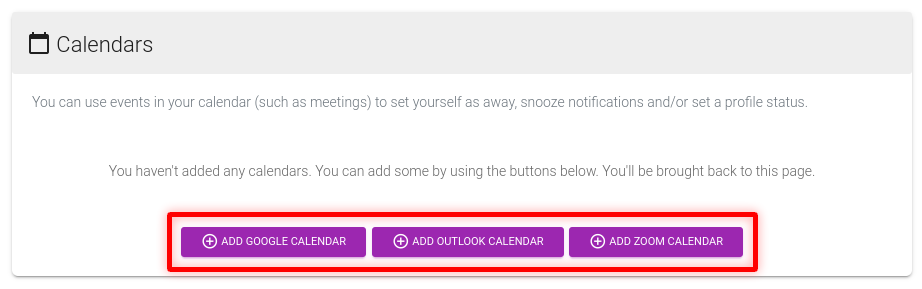
Sign up with Slack, then add your Google, Outlook or Zoom calendar from the dashboard. An iCal link also works. Switch the calendar on with the toggle beside it.
Step 2: Tie Do Not Disturb to your working hours
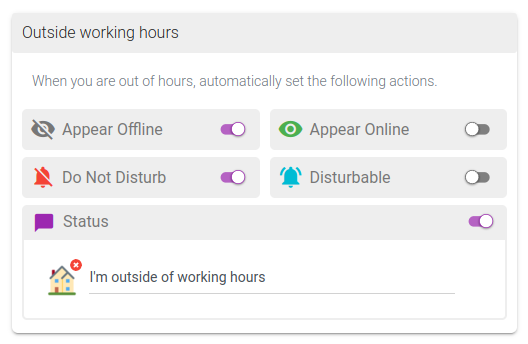
In Working hours, choose your time zone and switch on the days you work with a start and end for each. Then open Outside working hours and switch on Do Not Disturb. Outside your hours, including weekends, Don’t Interrupt snoozes Slack. Add Appear Offline if you also want to appear away, and Status for a message such as “Offline until 9am”.
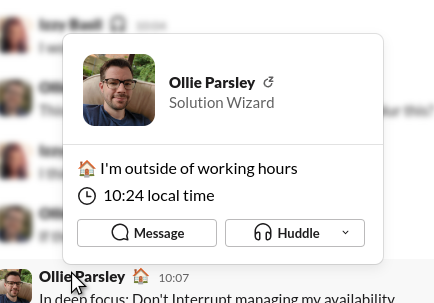
In Slack, Appear Offline shows as away. The status appears on your profile.
Step 3: Snooze during meetings
Open the calendar’s Event/Meeting settings and switch on Do Not Disturb. Slack is snoozed from when a meeting starts until it ends. Switch on Status too if you want a message such as “In a meeting”. There is a separate Private Event/Meeting section if private events should behave differently.
Step 4: Use focus-time events
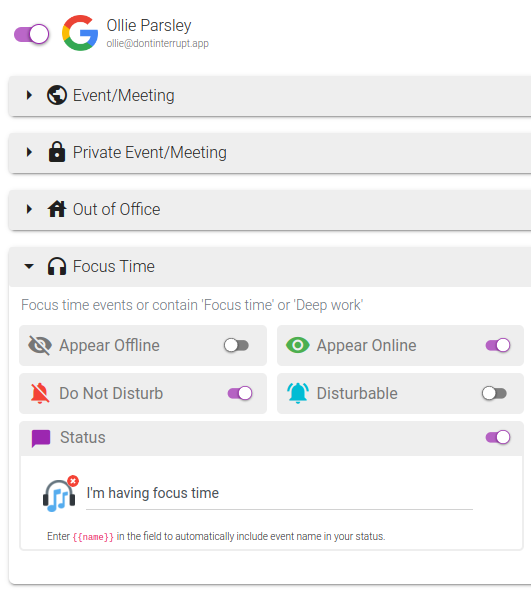
Calendar events marked as focus time, or with “Focus time” or “Deep work” in the name, have their own Focus Time section. Switch on Do Not Disturb there and Slack goes quiet for the length of each block. Focus time events are on the Plus and Pro plans, not the free Basic plan.
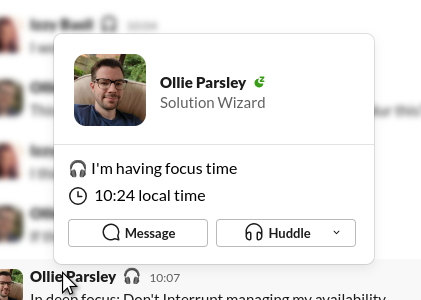
Step 5: Catch your own words with Calendar Rules
If you don’t mark your blocks as focus time, use a Calendar Rule instead. In Calendars Rules, choose Add Rule, enter a phrase such as focus, and set the actions to Do Not Disturb and a status. Any event whose name contains the word switches Do Not Disturb on. Rules can match event names, descriptions and locations.
How many rules and phrases you get depends on the plan: Basic has 1 rule with 1 phrase, Plus has 5 rules with 5 phrases each, and Pro has 20 rules with 10 phrases each.
Sign up free with Slack or Teams and set up your first rule in a few minutes.
Use both together
You don’t have to pick one. Slack’s notification schedule is a good floor: it pauses notifications on a fixed pattern whether or not Don’t Interrupt is running. Don’t Interrupt then handles the parts that follow your calendar, like meetings, focus blocks and events with particular words in the name.
Two things to bear in mind. Don’t Interrupt leaves a status you set by hand alone. And a real calendar event generally beats the generic working-hours state, so a meeting inside working hours is handled as a meeting.
How the options compare
| Slack’s own settings | Reclaim | Don’t Interrupt | |
|---|---|---|---|
| Recurring Do Not Disturb hours | Yes, notification schedule on every plan | Not described | Yes, from your working hours |
| Do Not Disturb from calendar events | Not described for the calendar apps | Yes, per event category, off by default | Yes, optional, per type of event |
| Focus time | The docs we checked don’t describe it | Deep solo work is a category | Focus time events on Plus and up |
| Words in the event name | Not described | Not described | Calendar Rules with phrase matching |
| Scheduled statuses | Up to five, one-off windows | Not described | Recurring through working hours and calendar events |
| Cost | Included with Slack | Slack status sync needs a paid plan, from $10 per seat a month billed yearly | Free Basic plan; Plus is $4 a month |
Checked against Slack’s and Reclaim’s help and pricing pages on 2 October 2026. For more, see Don’t Interrupt vs Slack’s scheduled status and vs Reclaim.
Limits worth knowing
- Changes land within about five minutes. Don’t Interrupt rounds event times up to five-minute boundaries, so Do Not Disturb can start a little after a meeting does.
- Your own status wins. A status you set by hand is left alone unless you switch on Override status.
- Several workspaces need a paid plan. Basic covers one Slack or Teams account, Plus three and Pro ten.
- The free plan adds a short tag (” • dontinterrupt.app”) to statuses it sets. Plus and Pro can remove it.
- Outlook at work: a company may need an IT admin to approve calendar access. An iCal link is the fallback.
Frequently asked questions
Can you schedule Do Not Disturb in Slack?
Yes. Slack’s notification schedule lets you set hours for every day, weekdays or custom times for each day, on all plans including Free. It runs on the clock. Don’t Interrupt adds Do Not Disturb that follows your calendar.
Does my notification schedule override the workspace default?
Yes. Slack’s help pages say that if an owner or admin sets a default schedule, the schedule you set yourself overrides it.
Can Slack turn on Do Not Disturb for a meeting automatically?
Slack’s help pages for its calendar apps don’t describe it. The notification schedule can’t see your calendar. Don’t Interrupt and Reclaim can both switch Do Not Disturb on for calendar events.
Can I schedule a Slack status to repeat every week?
Slack lets you schedule up to five statuses at a time, each with a start and end time, and its documentation doesn’t describe repeating them. A working-hours rule in Don’t Interrupt repeats every week on its own.
Can Do Not Disturb start when an event name contains a word?
Yes. Add a Calendar Rule with a phrase such as “focus”, and any event with that word in the name gets the actions you set, including Do Not Disturb. Basic has 1 rule with 1 phrase, Plus has 5 and 5, and Pro has 20 and 10.
Does it work in Microsoft Teams too?
Yes. In Teams it sets your presence and status message. Teams treats Do Not Disturb differently from Slack, so see schedule Appear offline in Microsoft Teams.