Short answer: Microsoft’s documentation describes Appear offline as something you set by hand, optionally for a set duration, and doesn’t describe a way to schedule it. Don’t Interrupt sets Offline and Do Not Disturb in Teams automatically outside your working hours, but Teams still delivers notifications to someone who appears offline, so Do Not Disturb is the setting that actually quiets your evenings.
What Teams does on its own
Teams lets you pick your presence yourself: Available, Busy, Do Not Disturb, Be right back, Appear away and Appear offline. You can give the choice a duration. If you don’t, Microsoft’s admin documentation lists the defaults: Appear offline lasts until you change it, Busy and Do Not Disturb last one day, and the others last seven days.
What the documentation doesn’t describe is a schedule. There is no “appear offline from 6pm to 8am, Monday to Friday” setting in the pages we checked on 2 October 2026. Teams does work out presence from what you’re doing and from your Outlook calendar, which is how “In a meeting” appears, but that is Teams reacting to activity, not you scheduling a state.
There is one native scheduling feature, and it is on phones. Quiet time on Teams mobile mutes notifications for hours or days you choose. Microsoft’s page says nothing about it changing your presence, so colleagues still see whatever status you had.
That gap is why people search for this, and the usual answer is to build your own automation. More on that below.
Appear offline is not the same as quiet
Before you set anything up, know what each status does. This is the part that catches people out.
- Busy keeps notifications on. It tells people you’re occupied, and messages still pop up.
- Do Not Disturb stops the banner notifications. Chat messages still arrive, calls go to voicemail, and people on your priority access list can still get through. Microsoft’s wording is that Do Not Disturb is for when you don’t want to receive notifications.
- Appear offline changes what others see, not what you receive. Microsoft’s own page says: “You’ll still receive notifications if anyone messages you.”
So if your aim is “stop pinging me after six”, a scheduled Appear offline on its own is the wrong tool. Colleagues see you as offline, but a message from them still produces a notification on your phone or desktop. Do Not Disturb is the setting that silences them.
Both together do not give you “offline and silenced”. When Appear offline and Do Not Disturb are both switched on, Don’t Interrupt asks Teams for Offline and the Do Not Disturb part is dropped. The schedule page says the same: enabling Appear Offline and Do Not Disturb on Microsoft Teams will show you as offline. If silence matters more than looking offline, choose Do Not Disturb alone.
Schedule it with Don’t Interrupt
This takes about five minutes. You need to be signed in to Teams for any of it to apply, because Microsoft applies a preferred presence only while you have a Teams presence session. If Teams is closed and you’re signed out, Teams shows you as offline whatever any tool asked for.
Step 1: Sign up with Microsoft Teams
Choose Sign up FREE with Teams and sign in with your work or school account. Don’t Interrupt asks for permission to read and set your own Teams presence. Microsoft’s permissions reference lists that permission as not needing admin consent, though some organisations block people from approving any app.
Step 2: Set your working hours
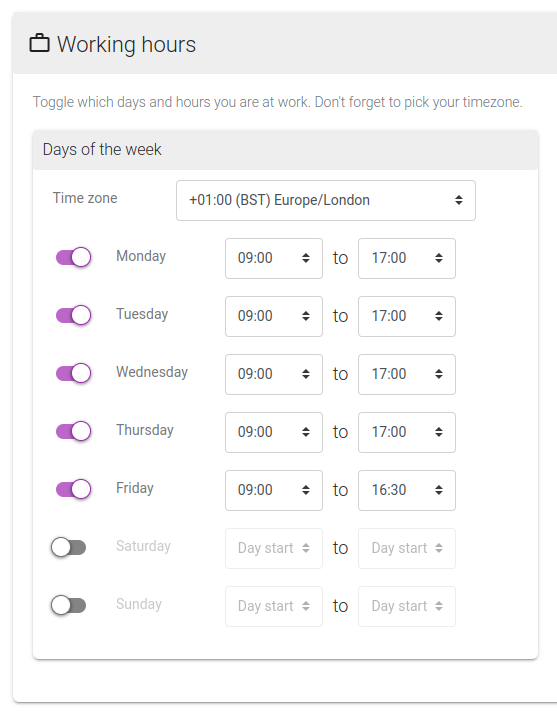
Open Working hours on your schedule. Pick your Time zone, then switch on each day you work and choose a start and end time. Each day has one window. Leave Saturday and Sunday switched off and the whole weekend counts as outside your hours.
Step 3: Choose what happens outside those hours
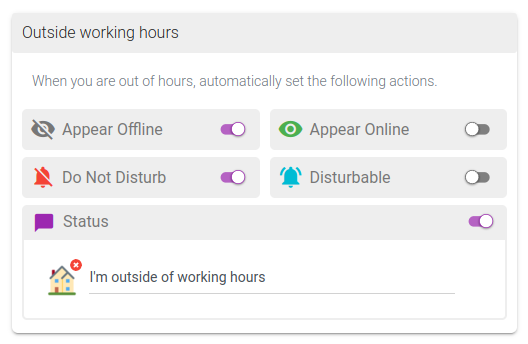
The Outside working hours card holds the actions that apply whenever you’re out of hours, including weekends. For a quiet evening on Teams:
- Switch on Do Not Disturb to silence notifications.
- Switch on Appear Offline as well only if you want colleagues to see you as offline and you accept the point above: the app then sends Offline, and Teams still delivers messages.
- Switch on Status and write a message such as “Off work”. Pick an emoji if you like.
There is also a During working hours card. Leave it alone if you only care about evenings, or use it to set a status while you’re at work.
Step 4: Check how it looks in Teams
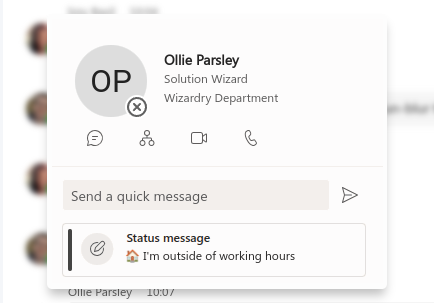
When your day ends, your status message appears on your profile card in Teams, and presence changes to what you chose. When the next working day starts, Don’t Interrupt clears them again.
Step 5: Add a lunch-break rule
Working hours have one window per day, so you can’t carve a lunch gap out of them. Use a Calendar Rule on a lunch event instead. Add your calendar to Don’t Interrupt, create a recurring “Lunch” event in it, then in Calendars Rules choose Add Rule. Enter the phrase lunch, leave Event names switched on so it matches the event title, and pick the actions: for example Do Not Disturb and a status such as “At lunch”. The free Basic plan includes one rule with one phrase, so this can be your single rule.
A real calendar event generally beats the generic working-hours state, so the rule applies during lunch and your working-hours actions take over again afterwards.
Sign up free with Slack or Teams to try it. For a wider view of the same idea, see change your status during weekends.
The DIY route: Power Automate
If you’d rather build it, Power Automate is the usual suggestion. It works, with more effort.
- The Teams connector in Power Automate has no presence action.
- Setting presence means calling Microsoft Graph through the HTTP with Entra ID connector, which is Premium. That it can call the presence endpoints is our inference, not a documented recipe.
- The call needs an app registration and consent. The Graph presence permission for your own account doesn’t need admin consent, but the app setup is still yours to do.
- Presence expires, so a flow has to set it again before the duration runs out.
- You write the schedule logic yourself: which days, which hours, time zones, holidays.
| Native Teams | Power Automate | Don’t Interrupt | |
|---|---|---|---|
| Schedule Appear offline | Not described in Microsoft’s docs; manual duration only | Possible via Graph, which you build | Yes, from your working hours |
| Schedule Do Not Disturb | Not described in the docs; Quiet time on phones doesn’t change presence | Possible via Graph, which you build | Yes, from your working hours and calendar events |
| Setup | None | App registration, consent, Premium connector | Sign in and set your hours |
| Upkeep | None | Flow must re-assert presence as it expires | Set once |
| Offline and silenced together | n/a | Your own logic | Not supported: Offline wins |
Checked against Microsoft’s and Power Automate’s documentation on 2 October 2026. For the full comparison, see Don’t Interrupt vs Power Automate for Teams.
Limits worth knowing
- Offline doesn’t silence Teams. Microsoft says you’ll still receive notifications. Use Do Not Disturb for quiet.
- You must be signed in to Teams for presence to apply.
- Changes land within about five minutes. Don’t Interrupt rounds times up to five-minute boundaries, so don’t expect a switch at exactly 17:00.
- Your own manual status is left alone. If you set a status by hand, Don’t Interrupt doesn’t overwrite it unless you switch on Override status in Options.
- The free plan adds a short tag (” • dontinterrupt.app”) to statuses it sets. Plus and Pro can remove it.
Frequently asked questions
Can I schedule Appear offline in Microsoft Teams?
Microsoft’s documentation describes Appear offline as a manual choice with an optional duration, and doesn’t describe scheduling it. Don’t Interrupt can set Offline automatically outside your working hours.
Does Appear offline stop Teams notifications?
No. Microsoft’s page says you’ll still receive notifications if anyone messages you. Do Not Disturb stops the banners, sends calls to voicemail, and lets through only the people on your priority access list.
What is the difference between Busy and Do Not Disturb in Teams?
Busy keeps notifications on. Do Not Disturb hides banner notifications, so use it when you don’t want to receive notifications.
Can I be offline and silenced at the same time?
Not with Don’t Interrupt. If Appear Offline and Do Not Disturb are both on, Teams gets Offline and the Do Not Disturb part is dropped. Pick Do Not Disturb if you want quiet.
Does Teams Quiet time change my status?
Quiet time is a mobile feature that mutes notifications for hours or days you choose. Microsoft’s page doesn’t say it changes your presence, so others still see your normal status.
Do I need to be signed in to Teams?
Yes. Microsoft applies a preferred presence only while you have a Teams presence session. If you’re signed out, Teams shows you as offline whatever a tool asks for.