Short answer: Microsoft Teams takes its meeting presence from your Outlook calendar, and Microsoft’s documentation says its own Google Workspace calendar sync ends in October 2026. Don’t Interrupt reads your Google Calendar and sets your Teams status message and Do Not Disturb for each meeting, so you don’t need to move your calendar to Outlook.
How Teams gets your status
Teams decides your presence from what you’re doing in the app and from your Outlook calendar. That is how “In a meeting” appears without you touching anything. Microsoft’s presence documentation names Outlook as the calendar source and doesn’t say that a Google calendar drives presence.
Two things follow if your calendar lives in Google:
- Teams doesn’t know when your Google Calendar meetings start, so it won’t show you as in a meeting.
- There is a Google Workspace to Teams calendar sync in the Teams admin app, but Microsoft’s message centre notice MC1462469 and its Learn page say calendar syncing between Google Workspace and Teams stops being supported from October 2026, and previously set up calendars will stop syncing. That sync is about calendar events, and Microsoft doesn’t describe it as a presence feature. Microsoft’s replacement is the Microsoft Teams Meeting add-on for Google Workspace, which is for scheduling Teams meetings from Google Calendar.
So there is no native route from a Google calendar to your Teams status. You have three options: move your meetings into Outlook, build your own automation, or use a tool made for it.
Set your Teams status from Google Calendar with Don’t Interrupt
Step 1: Sign up with Microsoft Teams
Choose Sign up FREE with Teams and sign in with your work or school Microsoft account. Don’t Interrupt asks for permission to read and set your Teams presence. Microsoft’s permissions reference lists that permission (Presence.ReadWrite, for your own account) as not needing admin approval, though some companies block people from approving any app.
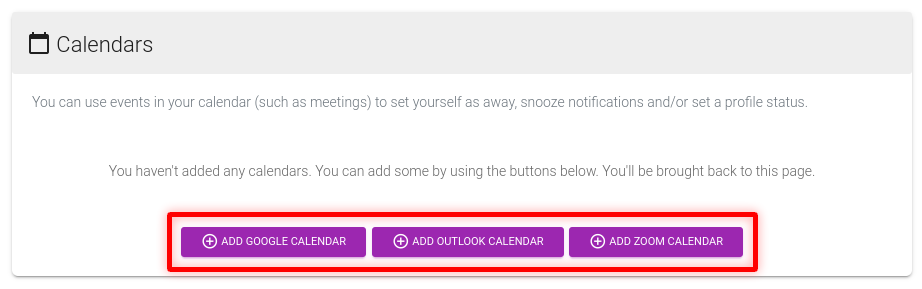
Step 2: Add your Google calendar
From the dashboard, add your Google Calendar. Your Teams account and your calendar are separate connections, so they don’t have to come from the same company. The calendar can be your Google one while the status goes to Teams.
Step 3: Choose what a meeting does in Teams
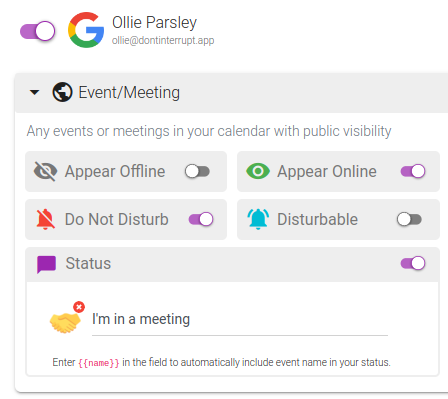
Open the calendar’s Event/Meeting settings. Switch on Do Not Disturb, and Teams stops showing banner notifications for the length of the meeting. Switch on Status and write a message such as “In a meeting”. Use {{name}} in the text if you want the meeting’s name included. Events marked private show “Private event” rather than their title.
Step 4: Check how it looks in Teams
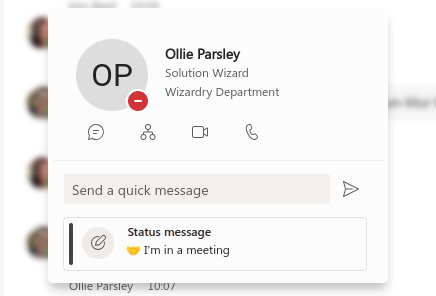
At the next meeting, your Teams presence changes to Do Not Disturb and your status message appears on your profile card. When the meeting ends Don’t Interrupt puts them back.
What to know before you rely on it
- Do Not Disturb isn’t “Busy”. In Teams, Busy keeps notifications on and Do Not Disturb hides banners. Chat messages still arrive, calls go to voicemail, and people on your priority access list can still reach you. Microsoft’s own wording is that Do Not Disturb is for when you don’t want to receive notifications.
- You need to be signed in to Teams. Microsoft applies a preferred presence only while you have a Teams presence session, so a tool can’t make you appear in Do Not Disturb when you’re signed out.
- Appear offline doesn’t silence Teams. If you also use Don’t Interrupt to appear offline after work, Microsoft says you’ll still receive notifications when someone messages you. For quiet evenings, choose Do Not Disturb instead. When both are switched on, the app sends Offline.
- Teams has no scheduled presence of its own. Microsoft’s documentation doesn’t describe scheduling Appear offline or Do Not Disturb, apart from Quiet time on phones, which doesn’t change your presence.
- Changes land within about five minutes of a meeting starting or ending. Don’t Interrupt rounds event times up to five-minute boundaries.
The options side by side
| Native Teams | Zapier | Power Automate | Don’t Interrupt | |
|---|---|---|---|---|
| Reads a Google calendar | Not described in Microsoft’s presence docs | Yes, with polling triggers | Needs another connector | Yes |
| Sets Teams presence | Outlook meetings only | Yes, with the Teams “Set Status” action | The Teams connector has no presence action; Graph via the Premium HTTP with Entra ID connector | Yes, Do Not Disturb or Offline, plus a status message |
| Delay on the free plan | n/a | Checks every 15 minutes, and a start trigger needs at least 16 minutes of lead time | Depends on the flow | About five minutes |
| Upkeep | None | Build and fix your own zaps | Build, license and maintain your own flows | Set once |
| Cost | Included with Teams | Free is 100 tasks a month with two-step zaps only; Professional starts at $19.99 a month billed yearly | Premium connectors need a Premium licence | Free Basic plan; Plus is $4 a month |
Details checked against Microsoft’s, Zapier’s and Power Automate’s documentation on 2 October 2026. For a longer comparison, see Don’t Interrupt vs Power Automate for Teams and vs Zapier and Make.
Frequently asked questions
Does Microsoft Teams read my Google Calendar?
Microsoft’s presence documentation names Outlook as the calendar that sets your meeting presence and doesn’t say that Google Calendar does. The separate Google Workspace sync in the Teams admin app is being retired from October 2026.
Is Microsoft really retiring Google Calendar sync for Teams?
Microsoft’s Learn page says: “Beginning October 2026, calendar syncing between Google Workspace and Microsoft Teams will no longer be supported.” Previously set up calendars stop syncing, and admins lose the controls in the Teams admin app. It concerns calendar event sync, and Microsoft hasn’t given an exact day.
Does it need my IT admin?
For the Teams side, Microsoft lists the permission Don’t Interrupt asks for as not needing admin approval, but a company can still choose to block apps. Your Google Calendar is connected through Google, so Microsoft’s Outlook calendar approval rules don’t come into it, though a Google Workspace admin can restrict third-party apps too.
What happens if I’m not signed in to Teams?
Microsoft applies a preferred presence only while you have a presence session, which means being signed in to Teams. Otherwise Teams shows you as offline whatever a tool asks for.
Can I make Teams appear offline on a schedule?
Microsoft’s documentation doesn’t describe a scheduled Appear offline. Don’t Interrupt can set Offline for the hours outside your working week, but Teams still delivers notifications while you appear offline. Choose Do Not Disturb if you want them silenced.
Does it work with Outlook calendars too?
Yes. Don’t Interrupt reads Google, Outlook and iCal calendars, and Zoom meetings. Some companies make an admin approve access to Outlook calendars, and an iCal link is the fallback.