Short answer: Each Slack workspace has its own profile and status, so without a tool you update every one by hand. Don’t Interrupt lets one account link several Slack workspaces and Microsoft Teams tenants as separate identities, with one schedule driving all of them on Plus or a different schedule for each on Pro.
Why one status isn’t enough
If you work with clients, a parent company or a community, you probably sit in several Slack workspaces, and perhaps a Teams tenant too. Each workspace has its own profile and status. Slack’s help pages don’t spell this out in so many words, but anyone who has set “In a meeting” in one workspace and found nothing changed in the next will recognise it.
Tools that set a status for you usually connect per workspace too, so a calendar app set up in your main workspace won’t touch your profile in the others. Slack’s scheduled statuses are limited to five at a time and are one-off windows. For a single workspace that is fine. For three workspaces it means three sets of settings and three places to fix when your meeting pattern changes.
Without a tool, the manual routine looks like this:
- Switch to each workspace when you go into a meeting or finish for the day.
- Set a status and, if you want it, pause notifications in each one.
- Remember to clear them all afterwards, or set an expiry in each.
It works, but it is exactly the kind of chore people stop doing by Wednesday. The result is a colleague in workspace B messaging you for an hour while workspace A says you’re in a meeting.
Keep every workspace right with Don’t Interrupt
Don’t Interrupt treats each Slack workspace or Teams tenant you link as an identity: your account on one platform. One Don’t Interrupt account can hold several identities, one calendar setup can drive all of them, and each identity keeps its own state. If you set a status by hand in one workspace, that one is left alone while the others carry on.
Step 1: Sign up and connect your first account
Choose Sign up FREE with Slack (or Sign up FREE with Teams) and authorise Don’t Interrupt in the workspace or tenant you use most. That creates your account and your first identity.
Step 2: Add a calendar and set up your schedule
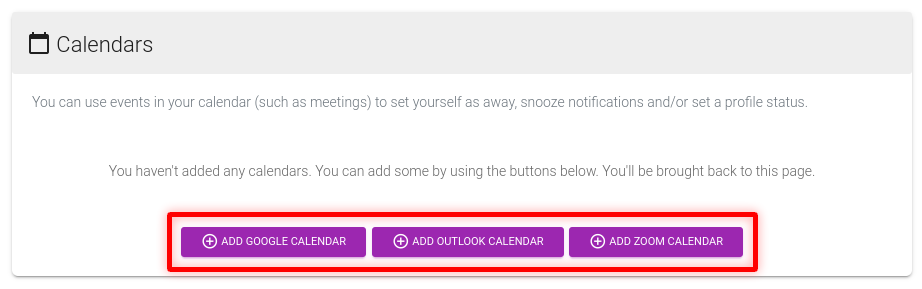
Add your Google, Outlook, Zoom or iCal calendar with the buttons at the bottom of the dashboard, then choose what meetings and working hours do: a status, Do Not Disturb, or presence. See how to set your Slack status from your Outlook calendar or how to put the meeting name in your status for the details.
Step 3: Add your other workspaces
Stay signed in to Don’t Interrupt and find the Identities card on the dashboard. It lists your linked accounts, and below the list are two buttons:
- Add Slack Account takes you through Slack’s authorisation screen. Sign in to the workspace you want to add.
- Add Teams Account does the same with Microsoft, for a Teams tenant.
Repeat for each workspace or tenant. Because you were signed in, the new account is attached to your existing Don’t Interrupt account rather than creating a second one. Each row in the Identities card shows the person’s name and the workspace or tenant it belongs to, with icons to refresh the identity or remove it. The card also says you can log in to Don’t Interrupt with any of these identities.
On the Basic and Plus plans, a new identity is given your existing schedule automatically. On Pro, see the next step.
Step 4: Choose which schedule each identity uses
An identity has at most one active schedule, but one schedule can serve several identities. So by default:
- Basic and Plus. You have one schedule and every identity uses it. Your meeting status, working hours and rules are written once and applied in every linked workspace and tenant.
- Pro. You can create more than one schedule, using Create A New Schedule in the Schedules card. In the Identities card each row then has a Schedule drop-down, so you can pick a different schedule per account, or choose None to leave an account alone for now.
Slack text is capped at 100 characters and a Teams status message at about 260, so keep shared wording short.
Step 5: A mixed Slack and Teams example
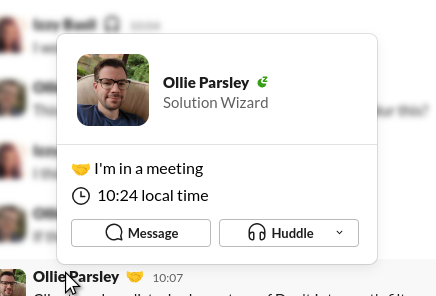
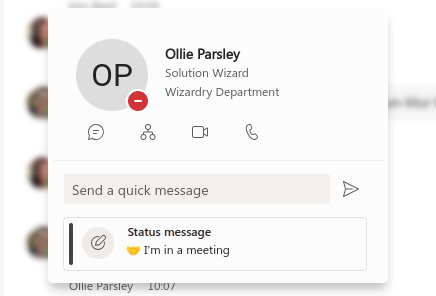
Say you work for an agency on Slack, with a client who uses Microsoft Teams, and your calendar is Outlook. You link your agency Slack workspace and the client’s Teams tenant as two identities. One schedule says: during meetings set the status “In a meeting” with Do Not Disturb, and outside 09:00 to 17:30 set Do Not Disturb as well. Both identities follow it. A meeting then sets your Slack status and your Teams status message together, and Do Not Disturb starts in both.
On Pro you might give the client tenant its own, stricter schedule, say a fixed “Out of hours” status after 17:00, while the agency workspace stays open for late messages.
|
|
Two details for Teams. Presence only changes while you’re signed in to Teams, and Teams’ Appear offline still delivers notifications, so use Do Not Disturb if you want it quiet. Read Google Calendar to Microsoft Teams status for more.
Which plan do you need?
The limits that matter here are the number of linked accounts, calendars and schedules.
| Basic | Plus | Pro | |
|---|---|---|---|
| Slack or Teams accounts (identities) | 1 | 3 | 10 |
| Calendars | 1 | 3 | 10 |
| Schedules | 1 | 1 | Up to 30 |
| Different schedule per account | No | No | Yes |
| Overrides (one-off manual periods) | No | Yes | Yes |
| Status tag “ • dontinterrupt.app” | Added | Removable | Removable |
If you only need the same status in two or three workspaces, Plus is enough. Pro is for people who want different behaviour per account, or who manage more than three. See pricing for the current plan details, and how Don’t Interrupt compares with Slack’s scheduled status.
Limits worth knowing
- Changes land within about five minutes. Don’t Interrupt rounds event times up to five-minute boundaries, in every linked workspace.
- Your own status wins. If you set a status by hand in one workspace, Don’t Interrupt leaves that identity alone.
- The free plan adds a short tag (” • dontinterrupt.app”) to statuses it sets. Plus and Pro can remove it.
- You need a slot. If you’ve used all the identities your plan allows, adding another is refused until you remove one or upgrade.
- Each platform has its own rules. Slack text is capped at about 100 characters, and Teams has no emoji field, so emoji are folded into the text.
Ready to link your first workspace? Sign up free with Slack or Teams.
Frequently asked questions
Is my Slack status shared across workspaces?
Each workspace has its own profile and status, so a change in one doesn’t carry over to the others. Slack’s help pages don’t state this directly, so check it in your own workspaces. A tool normally has to connect to each workspace separately to update them all.
Can one account manage several Slack workspaces?
On Don’t Interrupt, yes. Each workspace you link is a separate identity under the same account, and you add them with Add Slack Account on the dashboard. The Basic plan allows one account, Plus three and Pro ten.
Can I mix Slack and Microsoft Teams?
Yes. Slack workspaces and Teams tenants count together against your plan’s account limit, and one schedule can drive both. The platforms differ in detail: Slack has a status with an emoji and about 100 characters, and Teams has a status message of about 260 characters.
Can each workspace have a different status or schedule?
On Pro, yes: create several schedules and pick one per account from the Schedule drop-down in the Identities card. On Basic and Plus there is one schedule, shared by all your accounts.
What happens if I set a status by hand in one workspace?
Don’t Interrupt treats a status it didn’t set as yours and leaves that identity alone, unless you turn on the Override status option on a paid plan. Other workspaces carry on as usual.
Do I need a separate calendar for each workspace?
No. One calendar can drive every identity on its schedule. Your plan limits how many calendars you can link in total: one on Basic, three on Plus and ten on Pro.