Short answer: Slack’s Outlook Calendar app sets your status to “In a meeting”, “Out of office” or “Working remotely” from your primary calendar, but it never includes the meeting’s name and the help page doesn’t describe Do Not Disturb. Don’t Interrupt reads your Outlook calendar and can add the meeting name, switch on Do Not Disturb and follow working hours, though a work Microsoft account may need an IT admin to approve calendar access first.
What Slack does on its own
Slack has a free Outlook Calendar app that updates your status from your calendar. For plain “I’m busy” signalling it may be all you need.
- What it sets. While you’re in an accepted meeting it sets your status to “In a meeting”. For time off it sets “Out of office”, and the Outlook app also has “Working remotely”.
- What it ignores. Slack’s help page says: “Your status will not include the name of the meeting that you’re attending.” So colleagues see that you’re busy, not what you’re busy with. The help page doesn’t describe turning on Do Not Disturb either.
- Which calendar. The Outlook sync uses your primary calendar only. Other calendars aren’t read.
- Your own status wins. The app doesn’t override a status you set yourself.
Slack also has scheduled statuses (up to five at a time, each a one-off start and end window) and a notification schedule that follows the clock rather than your calendar. Neither reads Outlook. For the difference between these, see Don’t Interrupt vs Slack’s scheduled status.
So you’d look elsewhere if you want any of these:
- The meeting name in your status.
- Do Not Disturb that starts and stops with your meetings.
- Different statuses for lunch, focus time or travel.
- The same calendar driving a Microsoft Teams status too.
Set your Slack status from Outlook with Don’t Interrupt
Step 1: Sign up and connect Slack
Choose Sign up FREE with Slack and authorise Don’t Interrupt in your workspace. This is the account whose status gets changed. Your calendar is a separate connection, so it doesn’t have to be tied to the same email address.
Step 2: Add your Outlook calendar
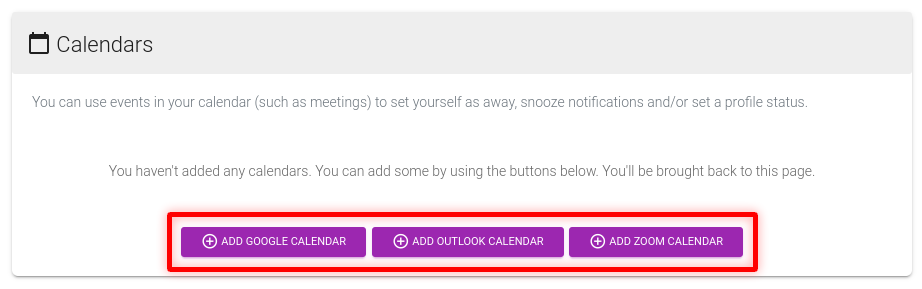
From the dashboard, use the Add Outlook Calendar button at the bottom and sign in with your Microsoft account. Don’t Interrupt asks for read-only calendar permissions (Calendars.Read and Calendars.Read.Shared, plus basic sign-in details), so it can see your events but can’t change them. If Microsoft tells you an admin has to approve access, jump to the next section.
Step 3: Choose what a meeting does
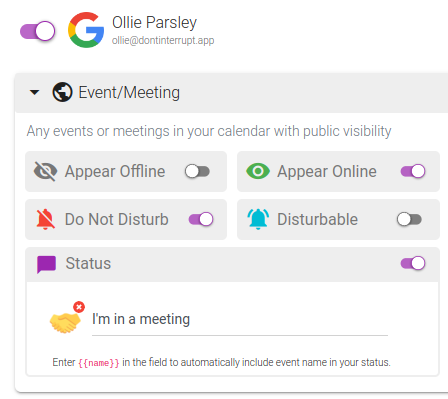
Open the calendar’s Event/Meeting settings. Switch on Status and write the text you want, for example “In a meeting”. Switch on Do Not Disturb if you want Slack notifications snoozed until the meeting ends.
Step 4: Add the meeting name, if you want it
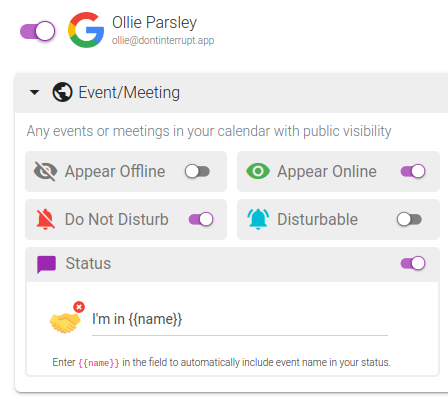
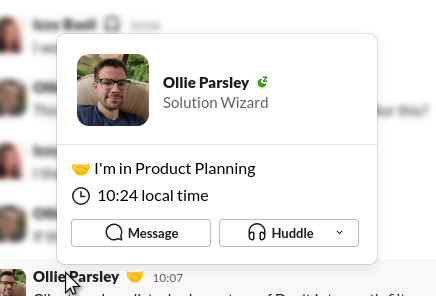
The name is optional and off by default. Type {{name}} into the status text and it is replaced with each meeting’s title, so “In {{name}}” becomes “In Product Planning”. Events marked private in Outlook show “Private event” instead of the title. Slack shows about 100 characters of status text, so a very long title is cut short.
|
|
Step 5: Add working hours and rules
Outlook meetings are only part of the day. Under Working hours, the Outside working hours and During working hours cards let you set a status, Do Not Disturb or presence for evenings and weekends, so you don’t need a meeting for Don’t Interrupt to know you’ve finished. Calendar rules swap the status for events whose title contains a phrase you choose, such as “lunch”. The free Basic plan includes one rule with one phrase, Plus five rules with five phrases each, and Pro twenty rules with ten phrases each.
Step 6: Add other calendars alongside Outlook
Slack’s Outlook app reads your primary calendar only. Don’t Interrupt lets you link several calendars on one schedule, so you can pair Outlook with Google, Zoom or an iCal link. The Basic plan syncs one calendar, Plus three and Pro ten.
If your IT admin has to approve Outlook
Since October to November 2025, many Microsoft 365 tenants have changed their default consent policy so that ordinary users can no longer grant an app permission to read their calendar. If yours has, adding an Outlook calendar can stop at a Microsoft error with the code AADSTS90094, which means an administrator must approve the app. Connections that were made earlier keep working. The change affects new connections.
You have two ways forward.
Ask your IT admin. What to tell them, and all of it is true:
- Don’t Interrupt asks for the Microsoft Graph delegated permissions
Calendars.ReadandCalendars.Read.Shared, along with basic sign-in permissions (User.Read,email,profile,openid) andoffline_accessso the connection survives past a single sign-in. - These are read permissions. Don’t Interrupt reads events and doesn’t create, edit or delete them.
- Approval is the admin’s call. Many tenants have an admin consent request process you can use to ask.
Use an iCal link instead. If waiting isn’t an option, publish your Outlook calendar and add its web address:
- In Outlook, publish the calendar and copy the ICS link. Microsoft’s help pages explain how, and some organisations switch publishing off, in which case this route is closed too.
- In Don’t Interrupt, press Add iCal Calendar, paste the link into the iCal URL box and press Add Calendar. Don’t Interrupt checks it can reach the address and that it is a valid calendar.
Treat the link like a password, because anyone who holds it can read what it publishes. These are the limits of iCal:
- The file can be at most 1MB.
- A published feed is a snapshot that Outlook refreshes on its own timetable, so changes can arrive later than the five-minute figure below.
How the options compare
| Slack’s Outlook Calendar app | Reclaim | Don’t Interrupt | |
|---|---|---|---|
| Meeting name in status | No, per Slack’s help page | Yes, opt-in with a {title} parameter |
Yes, optional, with {{name}}; private events show “Private event” |
| Do Not Disturb during meetings | Not described in the help page | Yes, per event category, off by default | Yes, optional, per type of event |
| Calendars | Primary Outlook calendar only | Google, Outlook | Google, Outlook, Zoom, iCal; one calendar on Basic, three on Plus, ten on Pro |
| Doesn’t overwrite your own status | Yes | The docs don’t describe it | Yes, by default (see limits) |
| Microsoft Teams | No, it’s a Slack app | Listed as “coming soon” | Yes |
| Cost for this | Included with Slack | Status sync needs a paid plan, from $10 per seat a month billed yearly | Free Basic plan; Plus is $4 a month |
Checked against Slack’s and Reclaim’s help and pricing pages on 2 October 2026. For more, see Don’t Interrupt vs Slack’s scheduled status and calendar apps and vs Reclaim.
Limits worth knowing
- Changes land within about five minutes. Don’t Interrupt rounds event times up to five-minute boundaries, so a status can appear a little after a meeting starts and clear a little after it ends.
- Your own status wins. A status you set by hand is left alone unless you turn on the Override status option, which needs a paid plan.
- The free plan adds a short tag (” • dontinterrupt.app”) to the end of statuses it sets. Plus and Pro can remove it.
- Outlook at work may need an admin. Use an iCal link if you can’t wait for approval.
Ready to try it? Sign up free with Slack or Teams. See pricing for what each plan includes.
Frequently asked questions
Does Slack’s Outlook Calendar app put the meeting name in my status?
No. Slack’s help page says your status will not include the name of the meeting. It sets text such as “In a meeting”, “Out of office” or “Working remotely”. To show the title you need a tool that supports it, such as Don’t Interrupt with the {{name}} placeholder.
Does Slack’s Outlook app turn on Do Not Disturb?
The help page for the Outlook Calendar app doesn’t describe it. Slack’s own notification schedule runs on the clock rather than your calendar. Don’t Interrupt can switch Do Not Disturb on for the length of each meeting, and you choose which types of event do it.
Why can’t I connect my work Outlook calendar?
Many Microsoft 365 tenants now stop users granting calendar access to apps themselves, and the error AADSTS90094 means an administrator has to approve it. Ask your IT admin to approve the read-only calendar permissions, or publish your calendar and add it with an iCal link.
Does the iCal route work as well as the Outlook connection?
Mostly, with a few limits. The calendar file can be at most 1MB, and a published feed may refresh more slowly than a direct connection. It does keep your meetings flowing into your Slack status while you wait for approval.
Can I use Outlook and Google Calendar together?
Yes. Don’t Interrupt can link several calendars to one schedule, within your plan: one on Basic, three on Plus and ten on Pro. Slack’s Outlook app reads your primary Outlook calendar only.
Will colleagues see the names of private meetings?
No. Meetings marked private show “Private event” in your status, never the title. The meeting name is also off unless you add {{name}} to the status text.