Put an emoji in the name of a calendar event and Don’t Interrupt can use it as your Slack or Microsoft Teams status emoji while that event runs. A meeting called “🎧 Focus time” gives you a headphones status, and “🥪 Lunch with Sam” gives you a sandwich, with no settings to change for each one. Try it free with Slack or Teams.
How it works
Don’t Interrupt looks at the name of the event that is on right now. If the event name contains an emoji, the first one is used as the emoji in your status. If it doesn’t, the emoji you chose for that type of event in your settings is used instead, so events without one carry on as before. Putting the emoji at the start of the name is the safest habit.
For example, say your status text is {{name}} and an event is called “🥪 Lunch with Sam”:
- The status emoji is 🥪, taken from the event.
- The status text is “🥪 Lunch with Sam”, or just “Lunch with Sam” if you also switch on Remove first emoji in event name (below).
An event called “Weekly planning” has no emoji, so it gets the emoji you set for meetings.
Turn it on
- Open your schedule and find the calendar you want to use.
- In the settings for the type of event (for example Event/Meeting or Focus Time), look for the Use first emoji in event name option and switch it on.
- Optionally switch on Remove first emoji in event name. This takes the emoji out of the event name when you use
{{name}}in your status text, so the sandwich appears in the emoji slot and not twice.
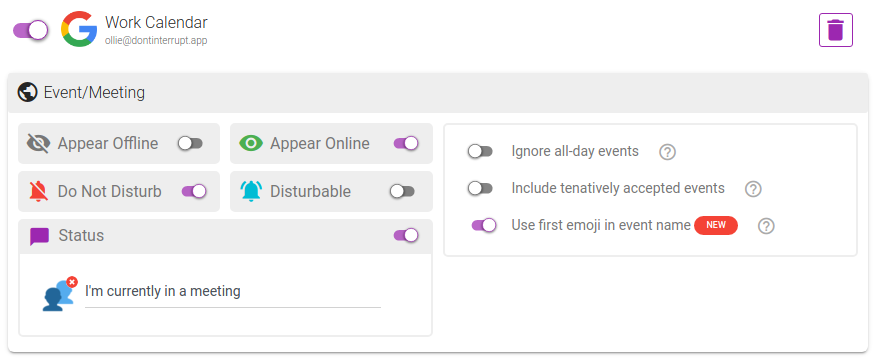
The option sits with the status settings of each event type, so you can switch it on for meetings and off for focus time, or the other way round.
What to know
- Private events keep their own emoji. Events marked private use the emoji you picked for private events and never reveal the event’s name, so a private event called “🏥 Appointment” does not put a hospital in your status.
- Only the first emoji counts. If a name has several, the first is used.
- Slack and Teams differ slightly. Slack has a separate emoji field. Teams has a single status message, so Don’t Interrupt puts the emoji at the start of the text. If Slack rejects an emoji it doesn’t know, Don’t Interrupt falls back to a speech bubble (💬) rather than failing to set a status.
- Changes land within about five minutes. Event times round up to five-minute boundaries.
- The free plan adds a short tag (” • dontinterrupt.app”) to statuses it sets. Plus and Pro can remove it.
Want a status for every lunch? See how to set a lunch status. Want the meeting name in the text as well as the emoji? See how to put the meeting name in your Slack status.
Frequently asked questions
How do I use an emoji from my calendar event as my Slack status?
Add the emoji to the event’s name in your calendar, then switch on Use first emoji in event name for that event type in your Don’t Interrupt schedule. While the event runs, that emoji is your status emoji.
Does it work in Microsoft Teams?
Yes. Teams has one status message rather than a separate emoji field, so the emoji is placed at the start of the message text.
Which emoji is used if there are several in the name?
The first one.
What happens if my event has no emoji?
Don’t Interrupt uses the emoji you chose for that type of event, such as meetings or focus time, in your settings.
Will a private event show its emoji?
Private events use the emoji chosen for private events. They never show the name of the event.