
"Why did my status get set to that?" is one of the questions we get asked most. Now the app answers it: every account on your dashboard tells you what it's showing, and why.
Each account has a coloured bar under it: green when it's up to date, amber when it differs from what we asked for, and red only when something is actually wrong. Click a bar to open the Details window.
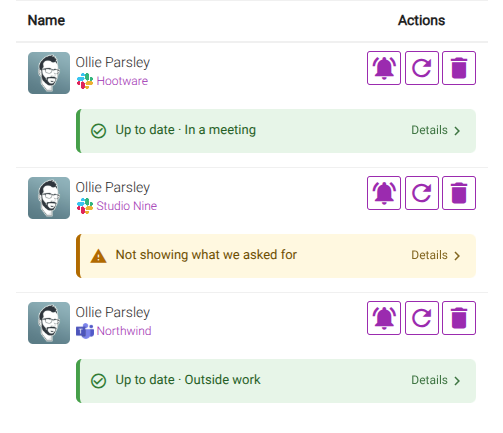
Details walks you through what's happening (the working hours, event or override that won), what we set because of it, and what Slack or Teams shows right now. If something doesn't match, only that line is highlighted, so you can see what's different.
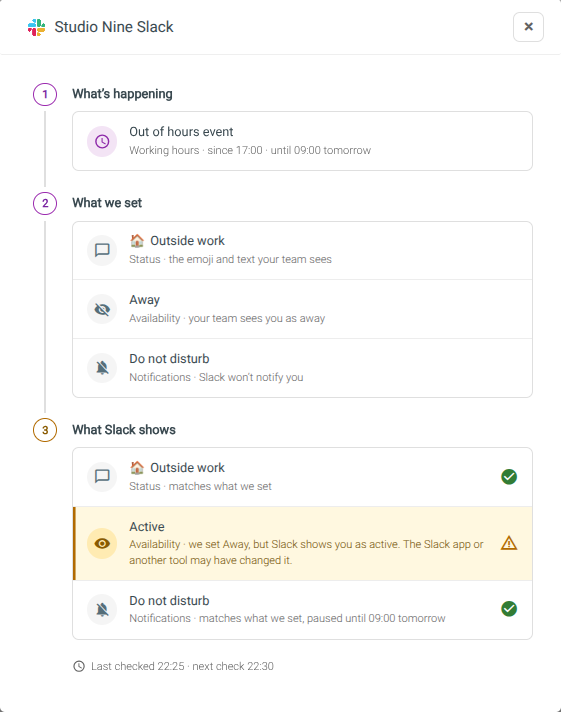
No more guessing. Open Details whenever you're curious and see exactly how your status got there, and press Check again to read Slack or Teams right now and make sure it's what you expect.